
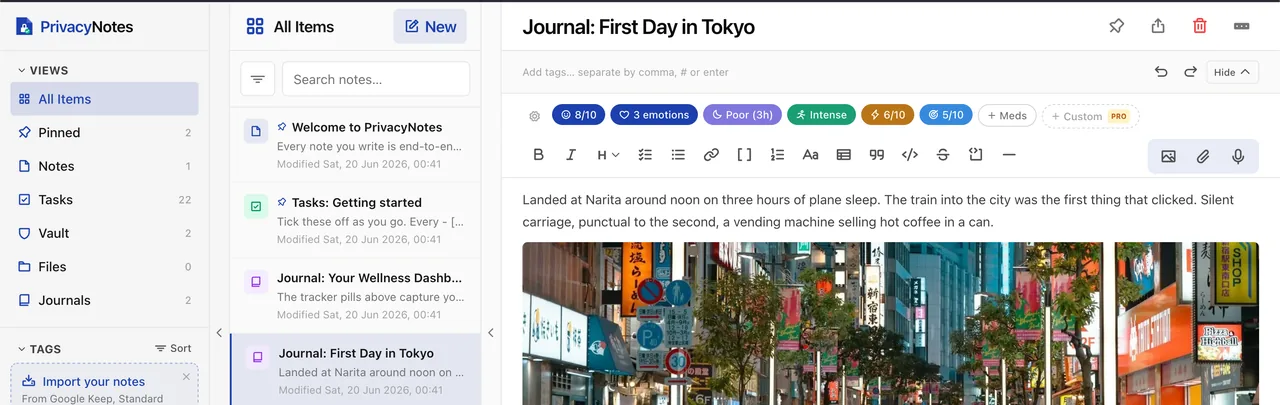
Google Keep has no “move to another app” button, so the path runs through Google Takeout: you export your notes as a .zip, then hand that file to PrivacyNotes. It takes a few minutes of actual work (Google does the heavy lifting in the background), and nothing is lost on the way over. Checklists become real task lists, labels become tags, pinned notes stay starred, and bold, italic, underline, and strikethrough all survive. Here is the exact process.
Part 1: Export your notes from Google Keep
- Open Google Takeout. Go to takeout.google.com and sign in with the Google account that holds your Keep notes.
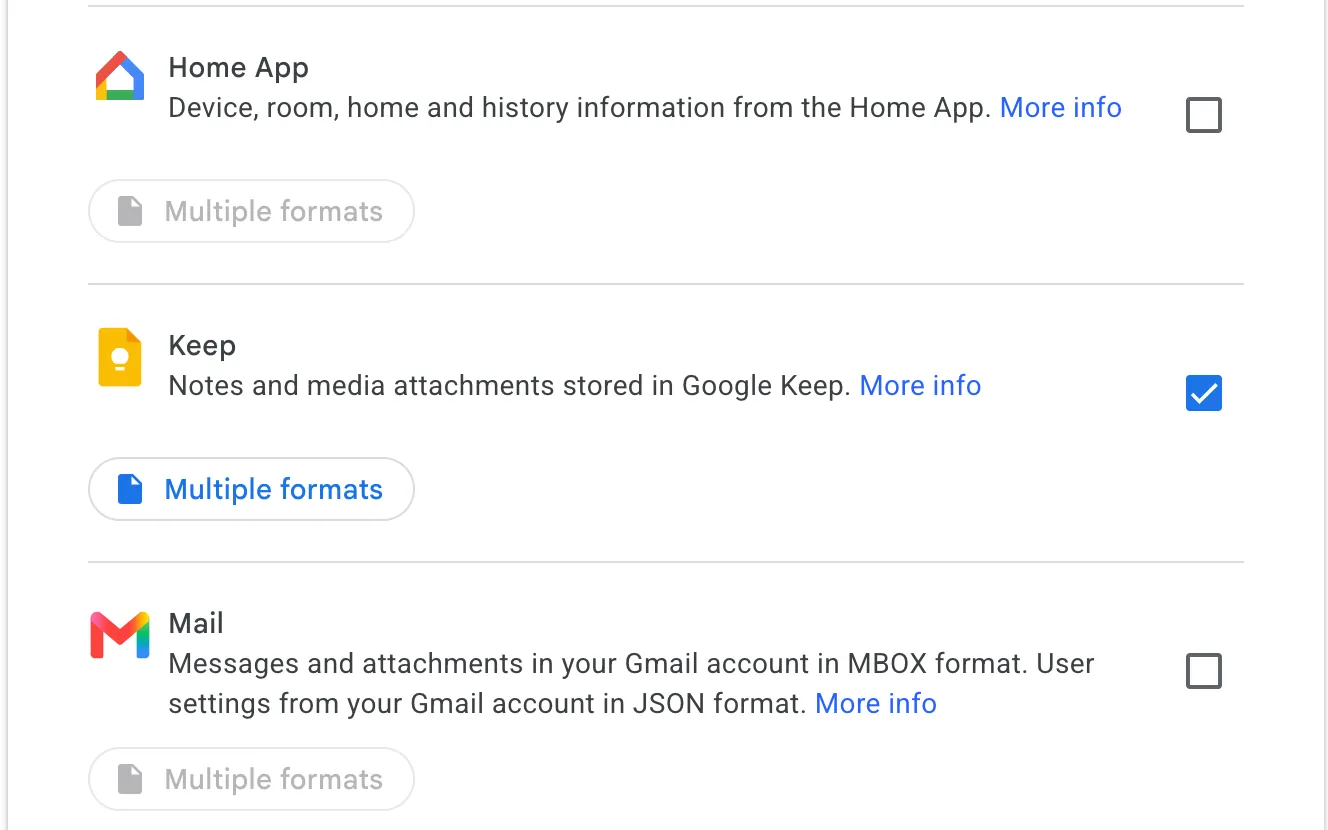
- Select only Keep. Click Deselect all, then scroll down and tick the checkbox next to Keep. This keeps the export small and Keep-only.
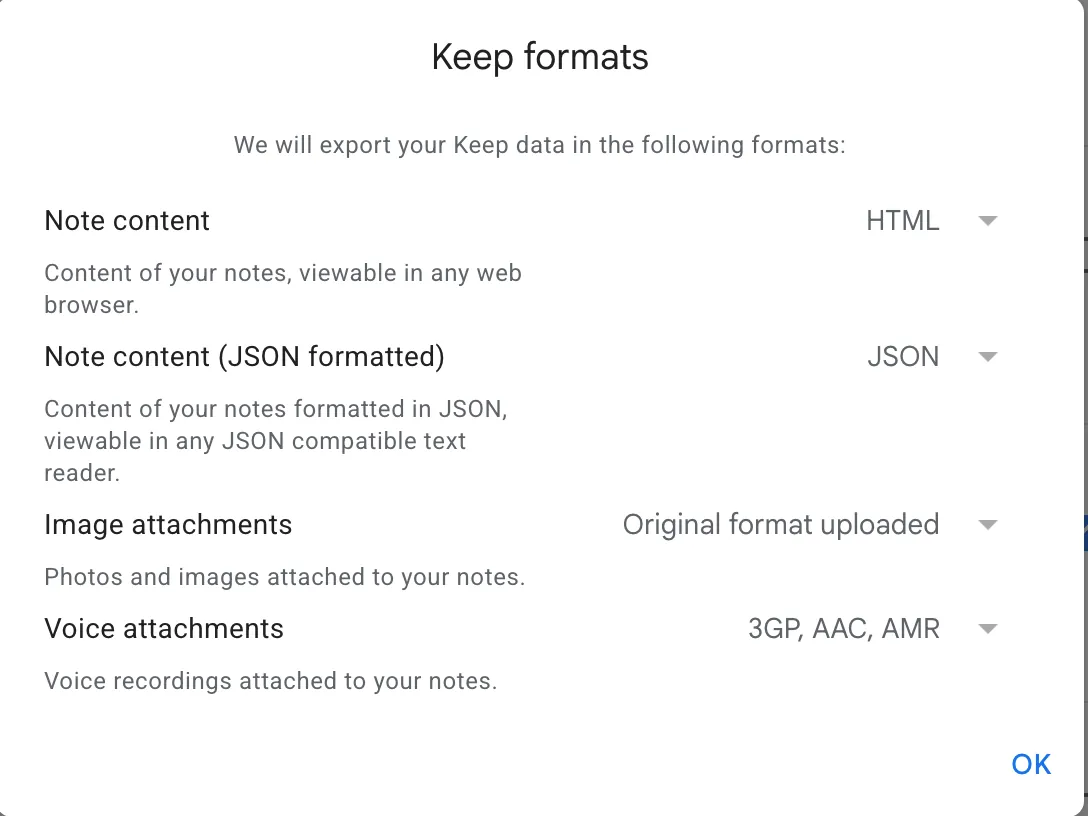
- Leave the format alone. Click Multiple formats if you want to look: Keep exports each note as both HTML and JSON. PrivacyNotes reads the JSON, so there is nothing to change here.
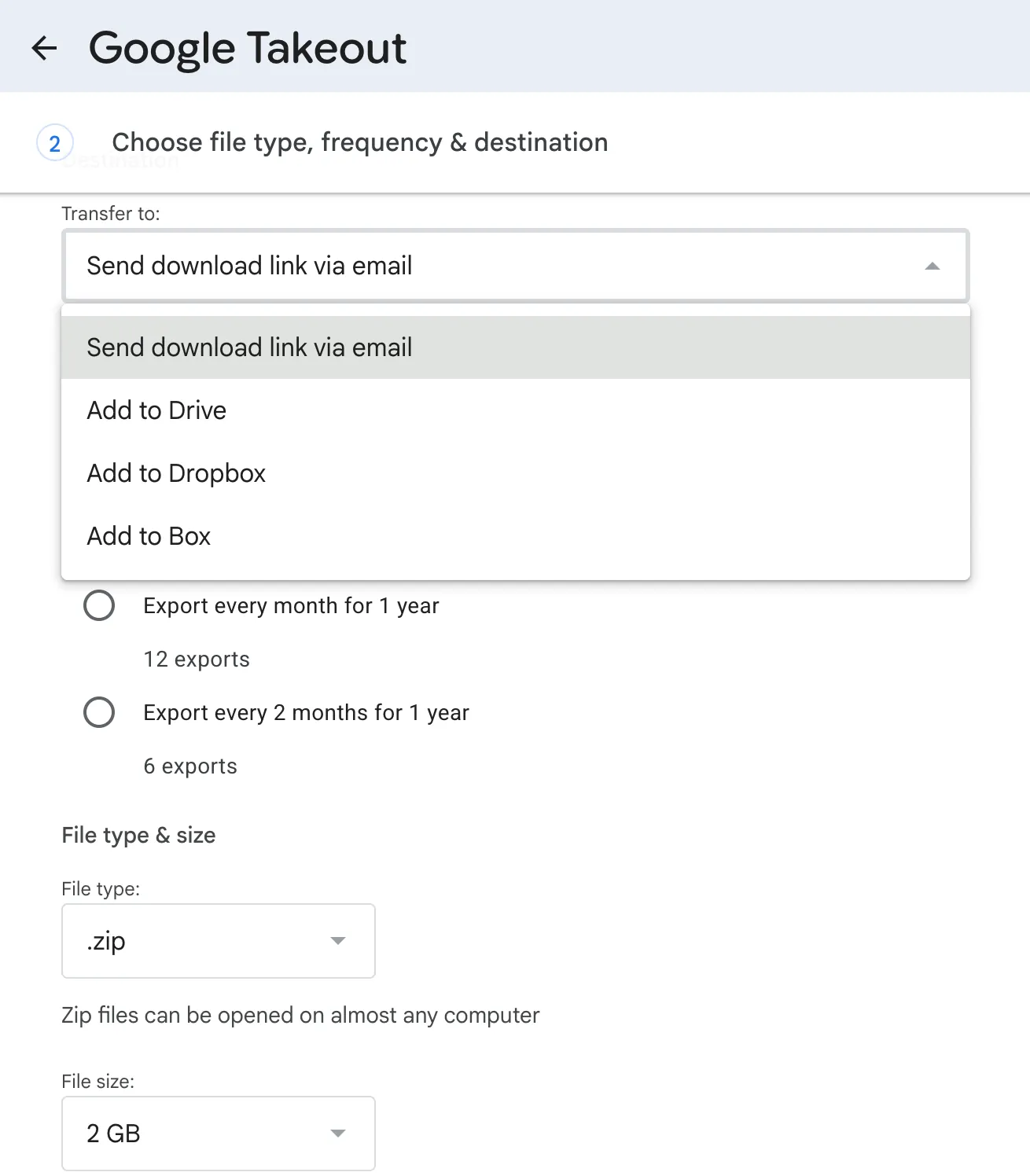
- Choose how to receive it. Click Next step, then set Transfer to: Send download link via email, Frequency: Export once, and File type: .zip. The defaults are fine.
- Create the export. Click Create export. Google starts packaging your notes. This can take anywhere from a few minutes to a few hours depending on how much you have, and you get an email when it is ready.
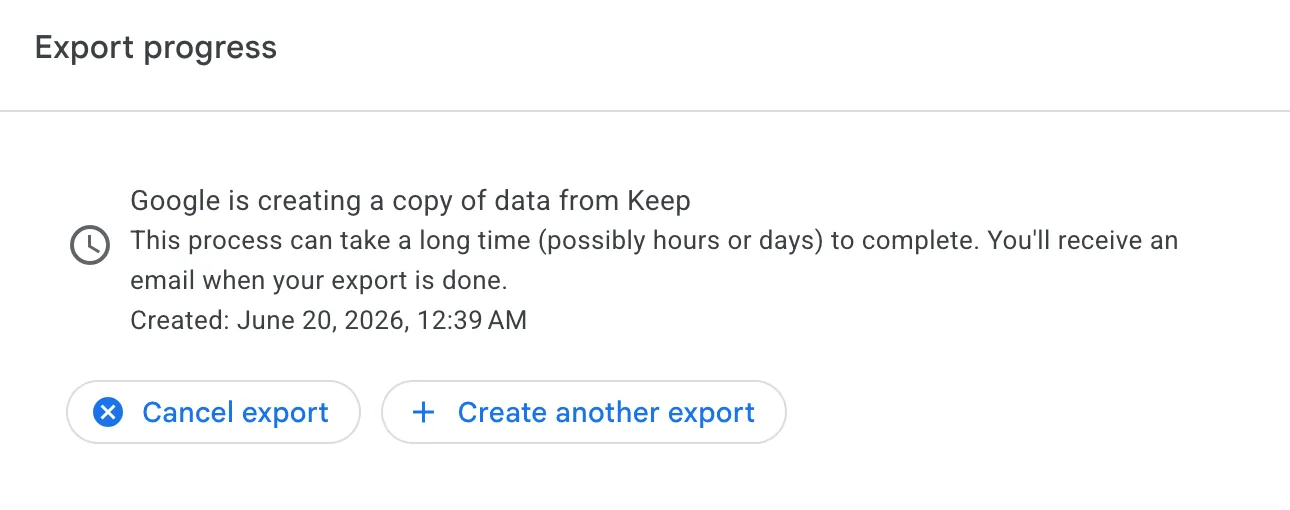
- Download the .zip. Open the email from Google and download the file. Do not unzip it. PrivacyNotes reads the .zip directly.
Part 2: Import the .zip into PrivacyNotes
- Open Import & Export. In PrivacyNotes, go to Settings > Import & Export and select the Import tab.
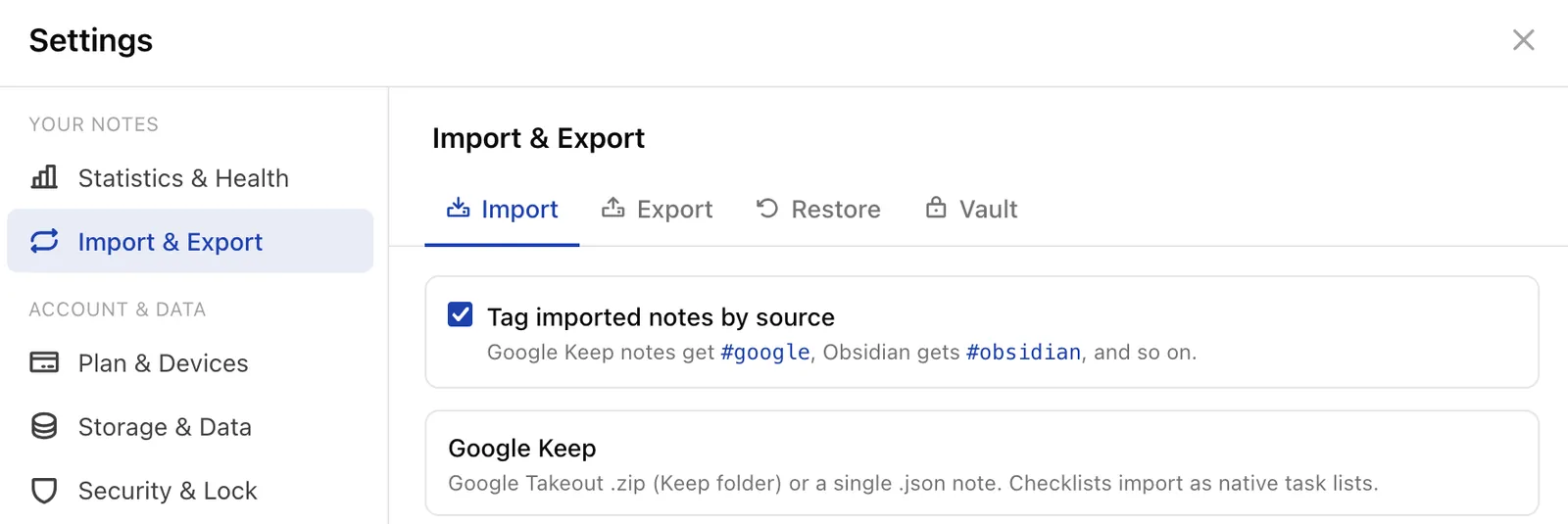
- Pick a tagging option (optional). Leave Tag imported notes by source checked to tag every imported note with
#google, which makes them easy to find or bulk-manage later. Uncheck it if you would rather they blend in. - Click Google Keep. Choose the Google Keep importer from the list.
- Select your file. Pick the Takeout .zip you downloaded, or a single .json note if that is all you have.
- Review the preview. PrivacyNotes shows how many notes and tags it found and exactly what it will convert: checklists into task lists, pinned notes into starred, formatting preserved, and so on.
- Click Import. Confirm, and your notes land in your library. They sync across your devices, encrypted, the moment the import finishes.
What carries over, and what to watch for
PrivacyNotes is built to make this lossless. Keep checklists import as native task lists with working checkboxes, and their checked state is preserved (a list where every item is already ticked comes in as plain text instead, since that is usually an old memory log rather than a live to-do). Labels become tags, pinned notes become starred, image and voice-note attachments come across, bare URLs are made clickable, and bold, italic, underline, and strikethrough formatting all survive. Archived and trashed notes are imported into your trash so nothing silently vanishes. One thing to know: importing always adds notes as new items, so running the same file twice gives you duplicates. There is no automatic de-duplication yet.
The bigger reason to switch: Google Keep notes sit on Google’s servers in a form Google can read, while everything in PrivacyNotes is end-to-end encrypted. The import runs locally in your browser, and your notes are encrypted on your device before any of it syncs, so that Takeout download was the last time the data sat in the clear. And because lock-in is not the business model, you can export everything back out of PrivacyNotes any time, for free. Start at PrivacyNotes.app.